Friday, October 9, 2020

An easy way to prevent sliding operations in android custom View from exceeding the boundary

 In android development, sliding operations are often used in custom views, and you must prevent sliding beyond the boundary. Here is a very easy way to prevent slipping out of the boundary.

Calculate the value of the left and right border X or the upper and lower border Y. If it does not exceed the screen, the left and top borders are 0, and the right and bottom borders are the width and height of the screen. Then rewrite the scrollTo method:

@Overridepublic void scrollTo(int x, int y) {    

    ​If(x>mRightOffsetX) x=mRightOffsetX;   

    ​ if(x<mLeftOffsetX) x=mLeftOffsetX;   

    ​ super.scrollTo(x, y);

}

Tuesday, October 6, 2020

ViewConfiguration.getMaximumFlingVelocity() is obsolete

 The ViewConfiguration.getMaximumFlingVelocity() method is obsolete. The alternative method is getScaledMinimumFlingVelocity().

usage:

ViewConfiguration.get(getContext()).getScaledMinimumFlingVelocity()

Monday, September 28, 2020

Use DateFormatSymbols().getShortWeekday to convert the dayOfWeek of the calendar into Chinese form

 In android development, sometimes we need to convert the week information obtained from calendar.get(Calendar.DAY_OF_WEEK) into the column format of Chinese "Monday, Tuesday".

The common way is:

string [] Day=new string []{"Sunday","Monday","Tuesday","Wednesday","Thursday","Friday","Saturday"};

Day[dayofweek];

In fact, there is an easier way:

new DateFormatSymbols().getShortWeekdays()[calendar.get(Calendar.DAY_OF_WEEK)]

This method is multi-language support, and it will be automatically converted to the corresponding form when switching languages.


Linearlayout scrollbars = "vertical" is not useful, the solution to Linearlayout scrolling

The content of Linearlayout often exceeds the screen. Although the scrollbars=”vertical” parameter can be set, it is useless.

The correct approach is to nest a layer of ScrollView outside the LinearLayout.

<ScrollView xmlns:android=”http://schemas.android.com/apk/res/android”

    android:layout_width=”match_parent”

    android:layout_height=”match_parent”

    android:fadingEdge=”vertical”

    android:scrollbars=”vertical”>

    <LinearLayout xmlns:android=”http://schemas.android.com/apk/res/android”

        android:layout_width=”match_parent”

        android:layout_height=”match_parent”

        android:orientation=”vertical”>

            android:layout_width=”match_parent”

            android:layout_height=”wrap_content”

            android:text="Please select a date:"

            android:textColor=”@android:color/holo_blue_dark”

            android:textSize=”22sp” />

Saturday, September 26, 2020

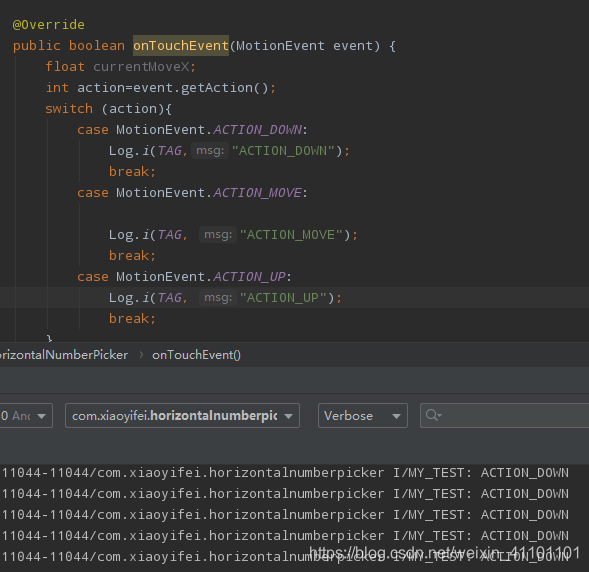
Android custom view only receives ACTION_DOWN solution

 Insert picture description here

When customizing View in Android development, the dispatchTouchEvent method is often rewritten, but in some cases, only ACTION_DOWN can be obtained, but ACTION_MOVE and ACTION_UP cannot be obtained.

The solution to the custom view receiving only ACTION_DOWN is
to add the following sentence in the custom View constructor:

setClickable(true);

Or add the following parameters to the layout:

android:clickable="true"

Or override the onTouchEvent method and return true.

@Override
    public boolean onTouchEvent(MotionEvent event) {
        return true;
    }

So you can get the response of ACTION_MOVE and ACTION_UP in the dispatchTouchEvent method.

As for the principle, I am not sure, and I don't want to figure it out. There are too many contents in this android system and too many pits. You can only encounter problems and solve them, otherwise the development progress will be too slow!

Get system attributes in android custom View

We all know that in android development, the method of obtaining custom parameters of custom View is:


TypedArray array=context.obtainStyledAttributes(attrs,R.styleable.Horiz);


We can get these custom parameters:


app:defaultValue="5"


app:valueFrom="2"


app:valueTo="10"


But sometimes we want to get the parameters of the system View itself, like this:


android:layout_width="200dp"


android:textSize="32sp"


android:columnCount="3"


In fact, the acquisition method is still like this:


TypedArray array=context.obtainStyledAttributes(attrs,R.styleable.Hori);


Just refer to the "android:" namespace when defining attrs.


<?xml version="1.0"encoding="utf-8"?>


<resources>


<declare-styleable name="Horiz">


<attr name="android:textSize"/>


<attr name="android:textColor"/>


<attr name="android:defaultValue"/>


<attr name="android:valueFrom"/>


<attr name="android:valueTo"/>


<attr name="android:columnCount"/>


</declare-styleable>


</resources>


In this way, you can directly use the commonly used android naming when layout custom View.


<com.xiaoyifei.horizo


android:id="@+id/id_horizontal_picker"


android:layout_width="200dp"


android:background="#000000"


android:textSize="32sp"


android:textColor="@android:color/white"


android:defaultValue="5"android:valueFrom="2"


android:valueTo="10"


android:columnCount="3"


android:layout_height="50dp"/>

Friday, September 25, 2020

About Android Studio debugging: abnormal E/HAL:load:id=gralloc!=hmi->id=gralloc solution

 In the development process of Android program, sometimes it just flashes when debugging the program, and only an exception E/HAL:load:id=gralloc!=hmi->id=gralloc is left in the log. It is difficult to find out the reason by looking at the code, which is very annoying.


This problem is the reason why the phone debug log is not opened!

Open the debugging log of the mobile phone and enter the project menu of the mobile phone. The method of entering the project menu is different for each mobile phone. Please Baidu.

The debugging phone I use is Huawei p8, and the way to enter the project menu is: input *#*#2846579#*#* in the dial keyboard.

After entering the project menu-enter the background settings-enter the Log settings-select AP log.


In this way, you can see the specific cause of the problem in the Logcat window of Android Studio.
The error is pointed out in every line of the program.